AI Model Assistant
The AI Model Assistant is designed for generating 3D models of industrial equipment, offering two methods: Image-to-3D and Text-to-3D. Users can upload reference images of equipment or directly enter equipment descriptions and prompts, then select the polygon count to generate a 3D equipment model. The generated assets can be directly referenced in the configuration page via 3D components.
Feature Description
-
Image-to-3D Equipment: Upload a reference image of the equipment to directly generate a corresponding 3D equipment model, enabling rapid conversion of 2D pictures into displayable and editable 3D equipment models.
-
Text-to-3D Equipment: Enter text describing the equipment type, structural features, material appearance, and style requirements to generate a 3D equipment model. This is suitable for scenarios where no reference image is available but a general equipment shape is known.
-
Polygon Count Setting: Select the polygon count before generation to balance model detail, generation results, and performance consumption.
-
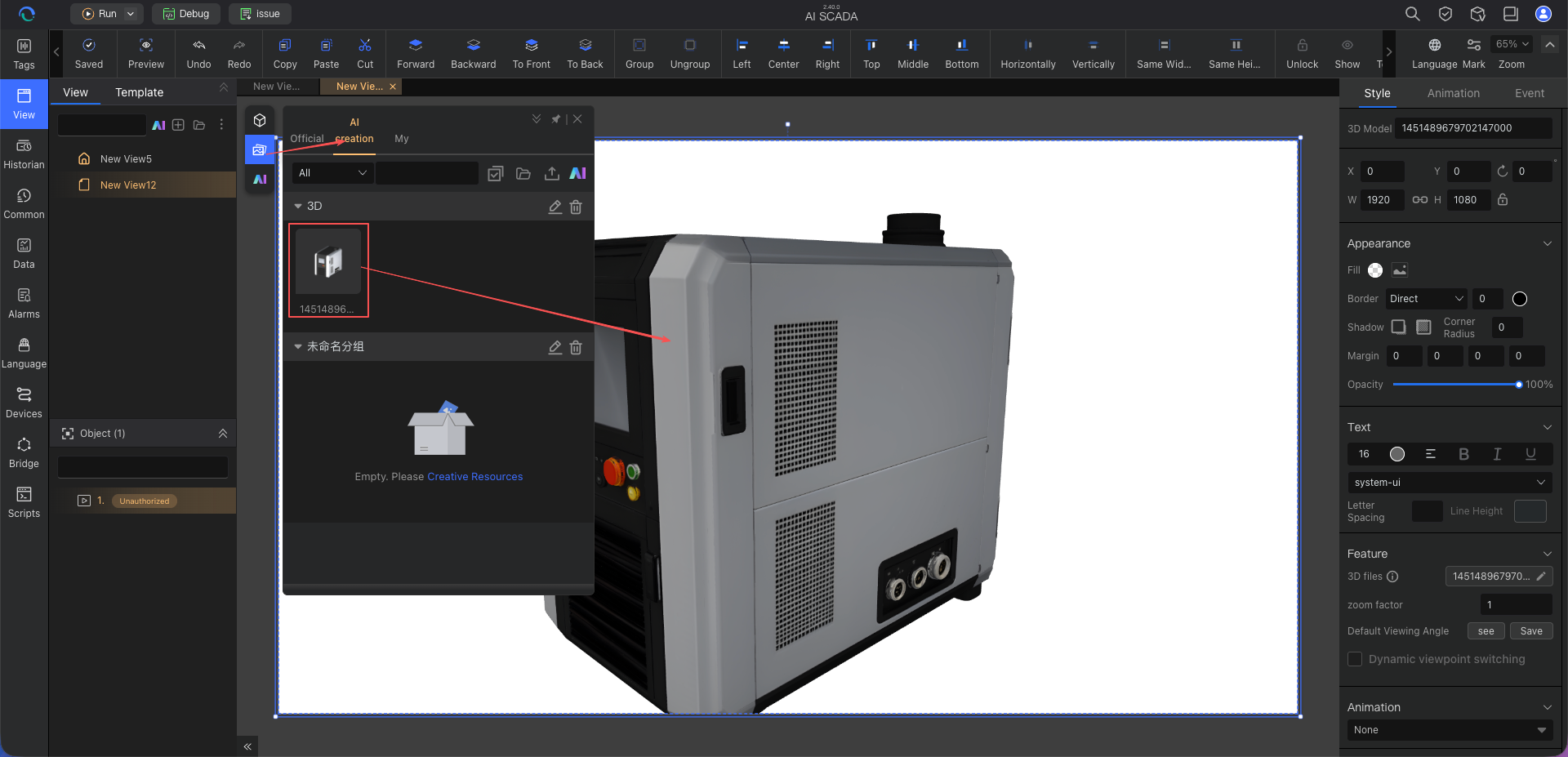
Generated Results Management: Generated equipment models are saved to the "AI Creations" section of the asset library and can be directly referenced in the configuration page via 3D components.
Core Advantages
1. Lowers the Barrier for OT Engineers to Use 3D Equipment Models
OT engineers typically lack modeling skills. The AI Model Assistant significantly lowers the barrier to creating 3D equipment models. Users can convert equipment reference images into 3D equipment models without needing to master modeling software.
2. Greatly Improves Efficiency Compared to Traditional Modeling and Rendering
Traditional 3D equipment modeling often involves multiple steps: modeling, structure adjustment, material assignment, rendering, etc., leading to long cycles and high communication costs. The AI Model Assistant compresses this pipeline into "upload image or enter prompt -> generate 3D equipment model," dramatically reducing model creation time.
Typical Scenarios
Scenario 1: Generate 3D Model from Equipment Reference Image
Background: You already have an equipment image, product photo, or sketch and want to quickly convert it into a 3D equipment model.
Steps:
- Switch to "Image-to-3D"
- Upload the reference image
- Select the polygon count
- Click "Generate Now"
Value: Suitable for quickly turning equipment pictures into displayable 3D models.
Scenario 2: Generate 3D Model from Text Description and Prompts
Background: No existing image, but you know what type of model you want to generate.
Recommended Format:
Industry + Equipment subject + Key features + Style
Example:
A vertical storage tank for a chemical plant, made of stainless steel with a smooth, seamless surface. It is equipped with a safety valve and level gauge on top and has a conical bottom. The tank features a silver-gray metallic luster in a realistic industrial style, with pipelines and instruments in the background to convey a sense of engineering rigor.
Value: Suitable for generating 3D equipment models directly when no reference image is available.
Scenario 3: Manage Generated Works in a Centralized Way
Background: Directly reference existing equipment models in configuration pages.
Operations:
- Go to "AI Creation"
- Browse works by group
- Reference the needed equipment model directly via a 3D component in the configuration page
Value: Ideal for continuous generation of equipment models and direct support the construction of configuration pages.
5-Minute Quick Start
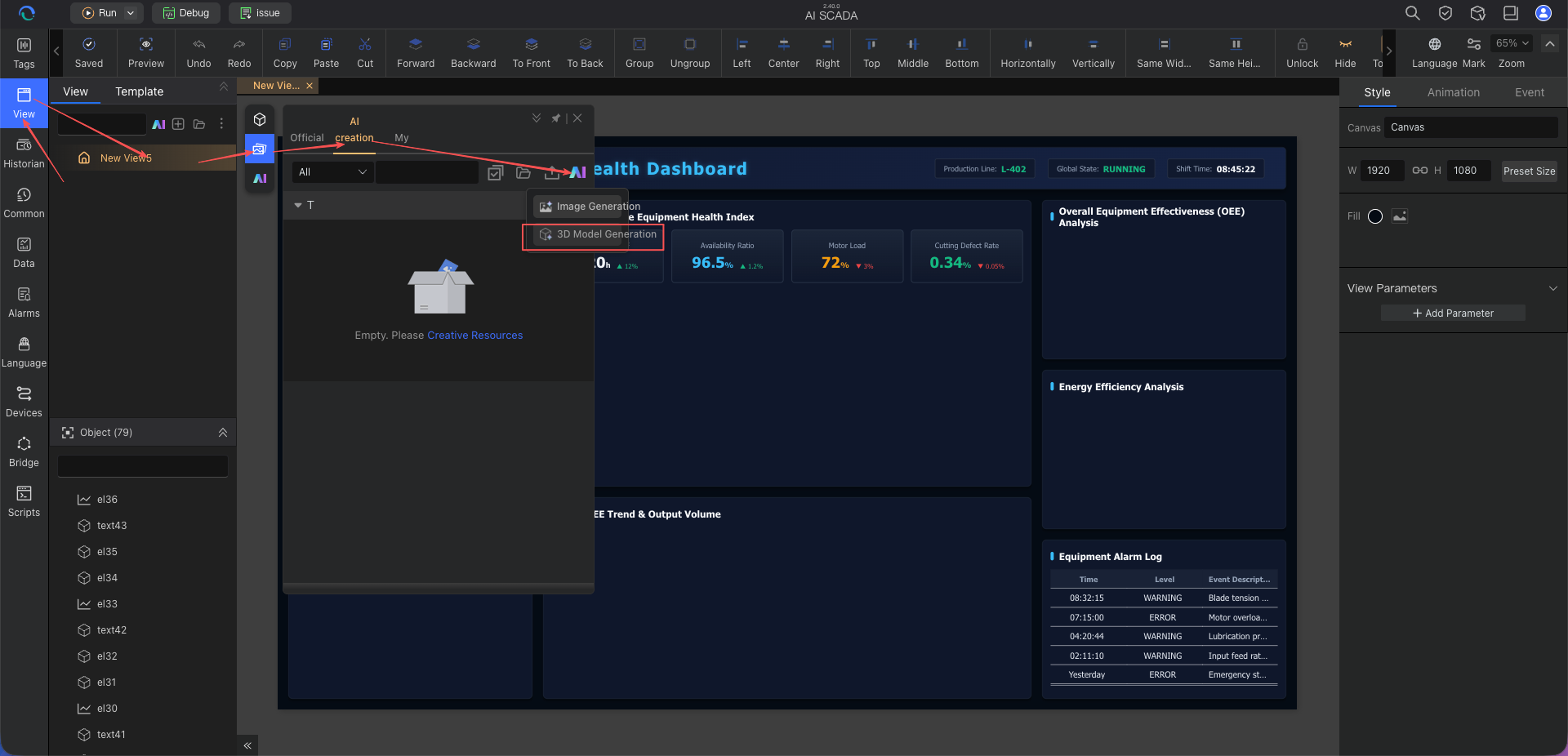
Step 1: Open the AI Model Assistant
Enter the Model Assistant page and first decide whether you want to generate a model from an equipment reference image or from a text prompt.
Step 2: Choose the Generation Method
- If you have an equipment image, select Image-to-3D
- If you only have an equipment description, select Text-to-3D
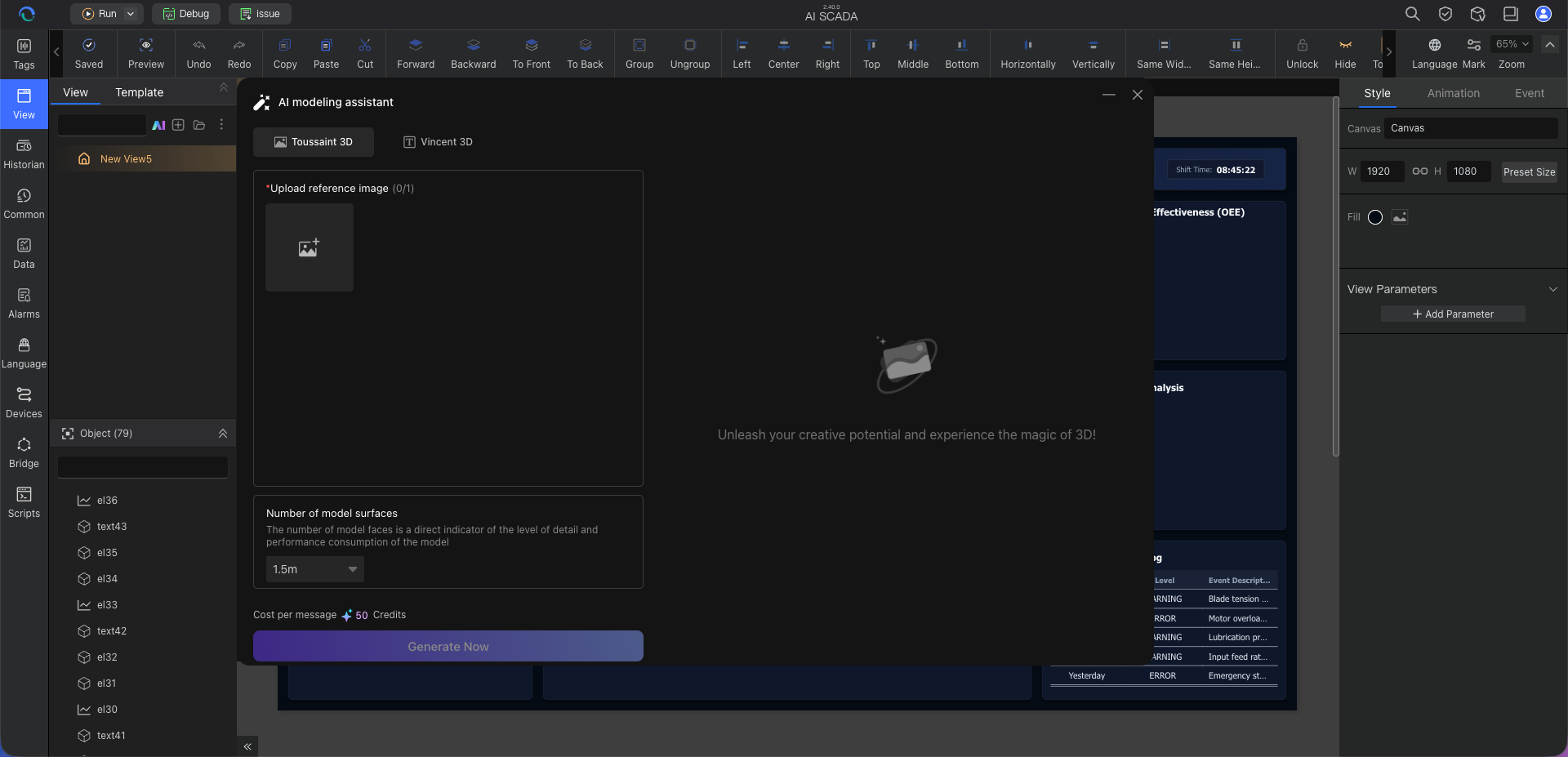
Step 3: Input Your Requirements
- Image-to-3D: Upload an equipment reference image
- Text-to-3D: Enter an equipment prompt – be as specific as possible about the equipment subject, structure, material, color, and style
- Select the appropriate polygon count
Step 4: Click "Generate Now"
After submitting the generation request, wait for the 3D model to be generated. Once generation is complete, you can preview the result. After confirming it meets your needs, save it to a designated location in the asset library. The saved 3D model becomes an asset resource that can be dragged directly into a page for use; alternatively, you can select and reference the model from the AI creation page when building a page.
Prompting Tips (For Quickly Generating High-Quality Models)
Tip 1: Formula for Text-to-3D Equipment
Formula: Industry equipment type + Structural features + Material/color + Style
Example 1:
An ore conveyor, using a high-wear-resistance metal frame, anti-tear rubber belt and inclined truss structure. The blue-gray finish is accented with yellow safety stripes, giving it a strong metallic texture and an industrial look, ideal for open-pit mining or crushing lines.
Example 2:
A fully automatic filling machine with a white body and transparent acrylic protective cover, revealing the internal structure: infeed star wheel, filling valve group, capping head, and electrical cabinet. The equipment showcase style fully meets food-grade hygiene requirements, making it suitable for juice or dairy production lines.
Tip 2: Image Preparation Before Image-to-3D
Recommendations:
- Keep the background simple, preferably a solid color
- Only one subject in the image
- Avoid text
- The subject should not be too small
- The clearer the image, the better – resolution no lower than 128x128
Tip 3: How to Choose the Polygon Count
- To get a quick sense of the overall effect, start with a lower polygon count
- For more detail, increase the polygon count
- Higher polygon count means more detail but also higher performance consumption
Frequently Asked Questions
Q1: What is the difference between Image-to-3D and Text-to-3D?
A: Image-to-3D generates a model from an uploaded equipment image, while Text-to-3D generates a model from an equipment description. The former is suitable when you have existing equipment images, the latter when you only have text requirements.
Q2: What are the requirements for the reference image?
A: The page supports png/jpg/jpeg/webp formats, with file size no larger than 6MB and minimum resolution 128x128. A simple background, single subject, and little to no text are recommended.
Q3: How should I understand the polygon count?
A: The higher the polygon count, the richer the model details, but also the higher the performance consumption. It is presented as an important parameter before generation.
Next Steps
- AI Image Assistant - Once your 3D equipment models are ready, learn next how to generate equipment images, background images, and page assets.
- API Integration Assistant - When your digital twin page needs to integrate third-party system data, continue to learn about API interconnection configuration.
- Usage Tips & Best Practices – After mastering asset generation, continue to study prompt writing and cross-assistant collaboration methods.